
How Can We Help?
Follow these troubleshooting steps if you are experiencing applicator-related error messages. Please upgrade your system to at least 2.2 or higher. Download the latest firmware here: https://www.imrsprime.com/support-firmware-upgrade/
A. “Resetting” the system.
Sometimes you need to “reset” the operating platform to get the system back to normal when experiencing issues with applications.
A.1 Unplug the applicator, wait for 5 seconds, and plug back again. Wait for another 5-10 seconds before choosing the program and start the app.
A.2 Do a cold reboot. Go to system settings –> Shutdown, or simply press and hold the power button to shutdown the system. Remove the power from the connector box. Reconnect the power to the connector box after 15 seconds. Start the system and try again.
A.3 Do a Factory Reset. Go to System settings –> Factory reset. This will delete all caching and logs that some times may impact the software operation of the system.
A.4 Do a system recovery (but this is only under the instruction of the support personnel).
B. Physical Inspection
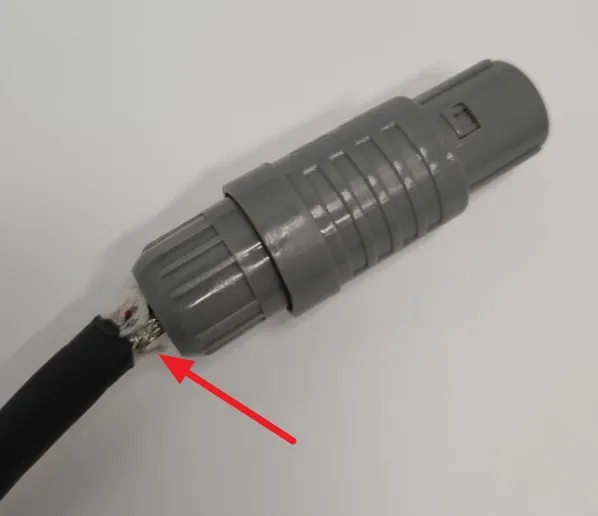
B.1 Check the connector head, cable, etc., to see if there are any possible breaks or loose cables that may be contributing to the problem. A broken or loose cable can prevent the applicator from being detected correctly by the system.
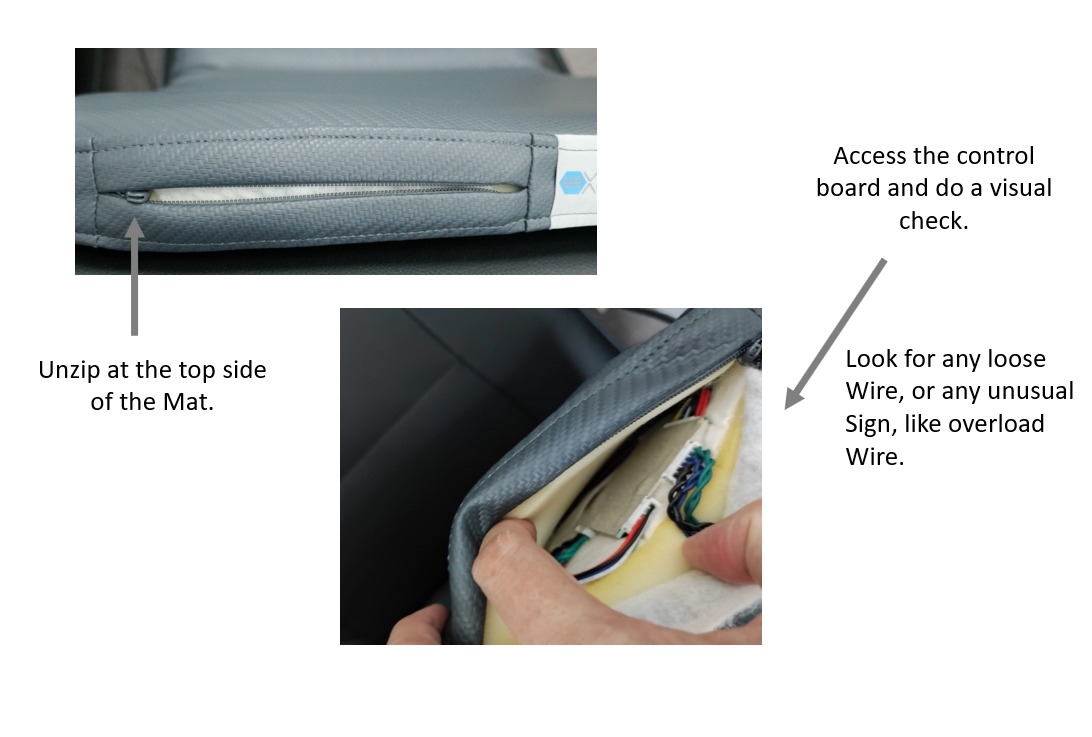
B.2 For Hybrid Mat/Mat/Pad, inspect the control board connectivity, and take note of any unusual observation.
C. Software Error Logs
We recommend you to update your system to a minimum 2.2 or higher, as this will offer us more insight of what could be the the problem with the new diagnostic menu. We will need the below information to further access the actual problem.
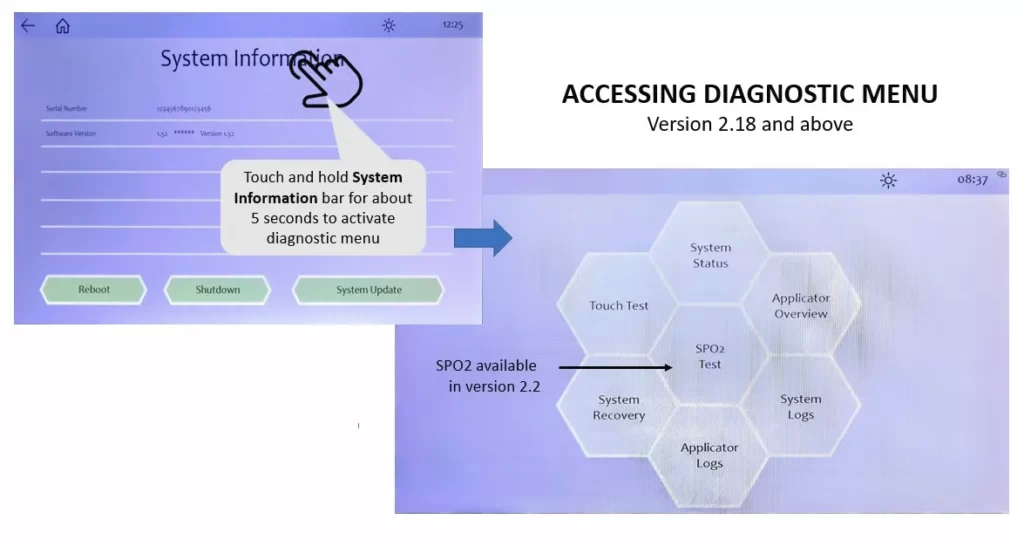
C.1 Go to diagnostic menu, take a quick look at the system status screen. The screen summarizes all the connection status of the system. With all the applicators plugged in, take a snapshot of the screen.
C.2 Go to Applicator Overview menu, again, take a snapshot of the screen.
C.3 Go to Applicator Log menu, take a snapshot of the screen.
D. Identifying failing component
When the applicator fails to register with the system consistently, we need to determine if the problem is with the applicator or the connector box. The failure of a connector box can also cause similar errors.
D.1 Test the working of the applicator by plugging it into another port or a different side of the connector box. If it works on another connector port, it might be a specific port on the connector. In this case, we will need to replace the connector box.
D.2 If you have tried all ports and still have trouble, try using another applicator (Pad, Spot, etc.) and see if the problem persists. When more than one applicator fails simultaneously, the problem is likely to be the connector box, since it is unlikely 2 or more will fail at the same time (though it is possible).
D.3 It is possible for an otherwise working applicator to cause unexpected behavior in another applicator in some rare cases. Instead of plugging multiple applicators into the connector box at once, test each one individually.