
How Can We Help?
If you are facing with intermittent applicator connection issues (i.e. the system cannot detect the plug in Exagon Applicators), please check the following:
A) Consistent connection issue for particular applicator
To verify if the system actually recognizes the applicator plugged in, go to the advanced menu setting. Tap the time display icon at the top left corner of the screen several times until you see additional tools icon displayed at the top menu bar. Next, tap the toolbox icon to get into the special menu.

Next, tap on the Applicator Overview Option

At the applicator overview screen, you should be able to check the entry of each Exagon applicator connected to the connector box. You can slide up the screen to scroll-down to see more entries.
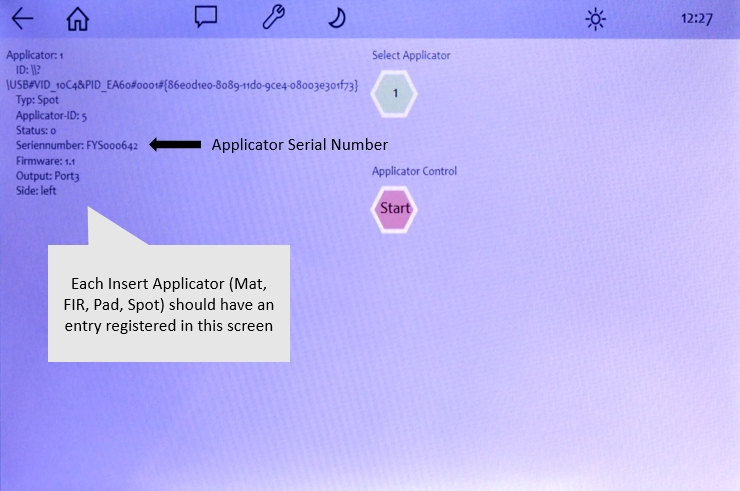
If you don’t see the applicator entry, it means the system has not registered the applicator correctly. Plug out and re-plug in the applicator to allow the system to automatically detect the unit.
In the event this still doesn’t work, it could be some software related issue, which a cold reboot (power down the main power supply, wait for 1 minutes until the blue light at the power adapter totally turn off), and power up back again.
Currently, there may have some intermittent detection issues with the applicator over prolonged usage. This is mainly software related. This should be resolved in the coming firmware releases. As an interim workaround, we suggest you do a cold reboot of the system.
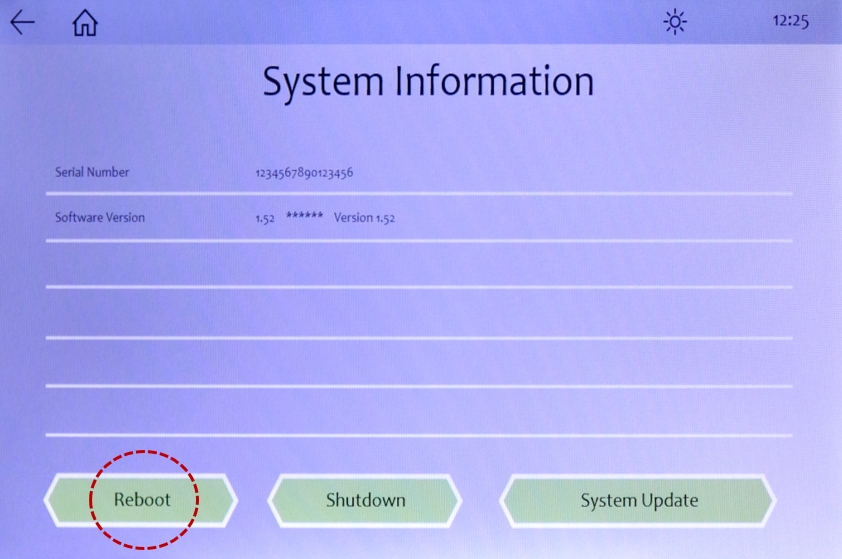
You can also do a quick reboot by going to the system information screen and press the reboot button.
B. Intermittent Issues
Due to the nature of intermittent issues, you will need to look at issues at a more holistic way (sounds familiar?). Below we list out some pointers for your further troubleshooting and investigation
- First and foremost, observe how frequent is the intermittent issue. i.e. if it happens like less than 5% time of your session, and it’s quickly resolved after either you unplug/replug or reboot the system, this is “normal” behavior based on how the iMRS prime system is designed. However always try to note down the error message and how it happens (i.e. start or during session, across different applicators, specific program or settings, etc.). All these information will be helpful for the support team to investigate the cause of the problem further.
- The Non-usual Suspects. There are many other components, aside the applicator itself can contribute to the error message. This include software version (always try the latest version), control panel, 20 pin connector cable, connector box, and even situation a faulty spot may cause error message on a perfectly working full body mat. So if time allow, disconnect all non-essential applicators/accessories (i.e. BRAIN/SENSE) and run on just the bare system first. Then plug in the different component one at a time. This can be quite a pain-staking process as the problem may not manifest itself immediately.
- Environmental. There are situation where the intermittent problem is due to your operating environment. This includes unstable voltage, which may contribute to fluctuating current supply to the system. As the Prime connector box is very sensitive to the voltage fluctuation at the applicator end, this may contribute to intermittent error message when the voltage fluctuate outside the threshold. Sometimes this explain why the system may works perfectly without error message at one place, but it becomes problematic at your place. One other environmental candidate is the presence of static electric – especially when you home is using a high density negative ions generator that’s placed too close to the Prime control unit. Portable power source using Solar/Battery though is supported as long as they meet the specification, may at times causing the instability too.