
How Can We Help?
The instruction below is based on firmware version 1.57 or higher.
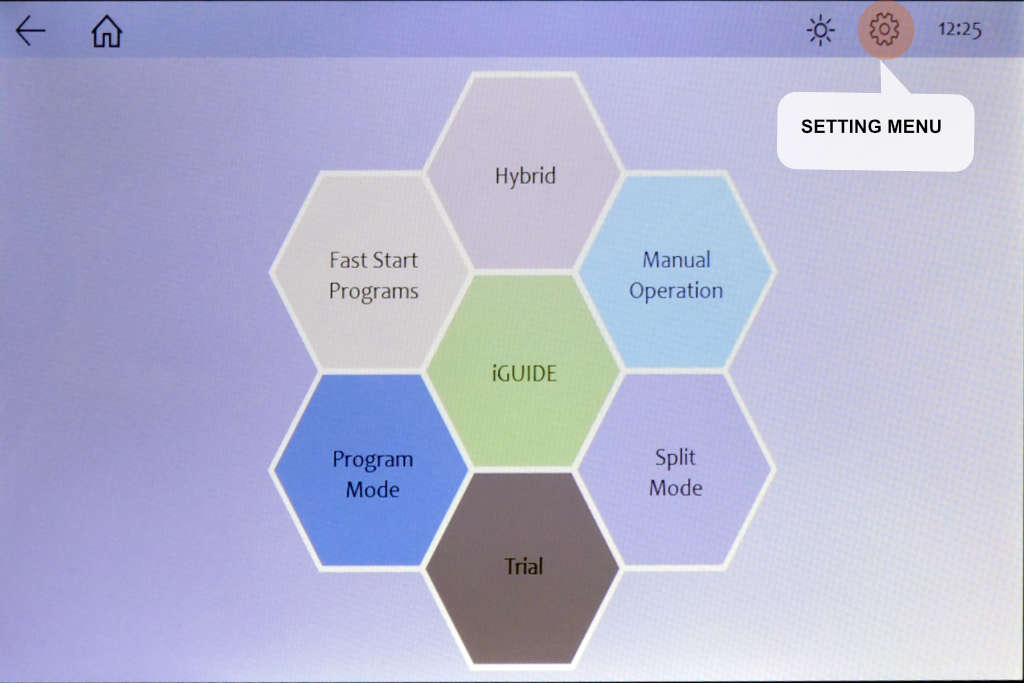
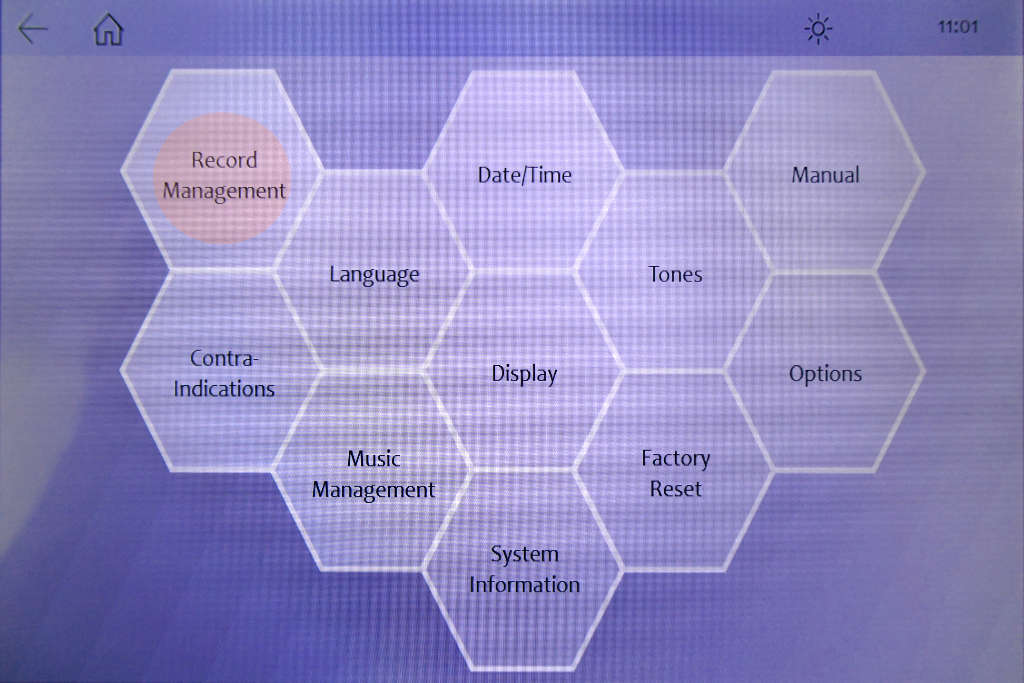
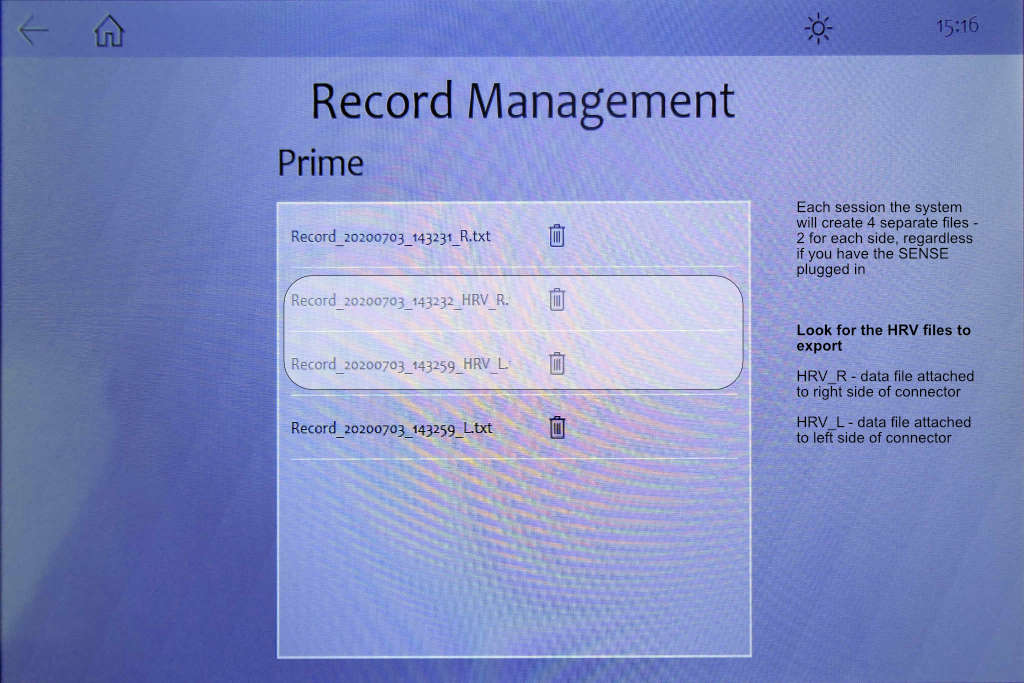
Next, you need to plug in a USB drive to either slot 1 or 2 of the touch control panel
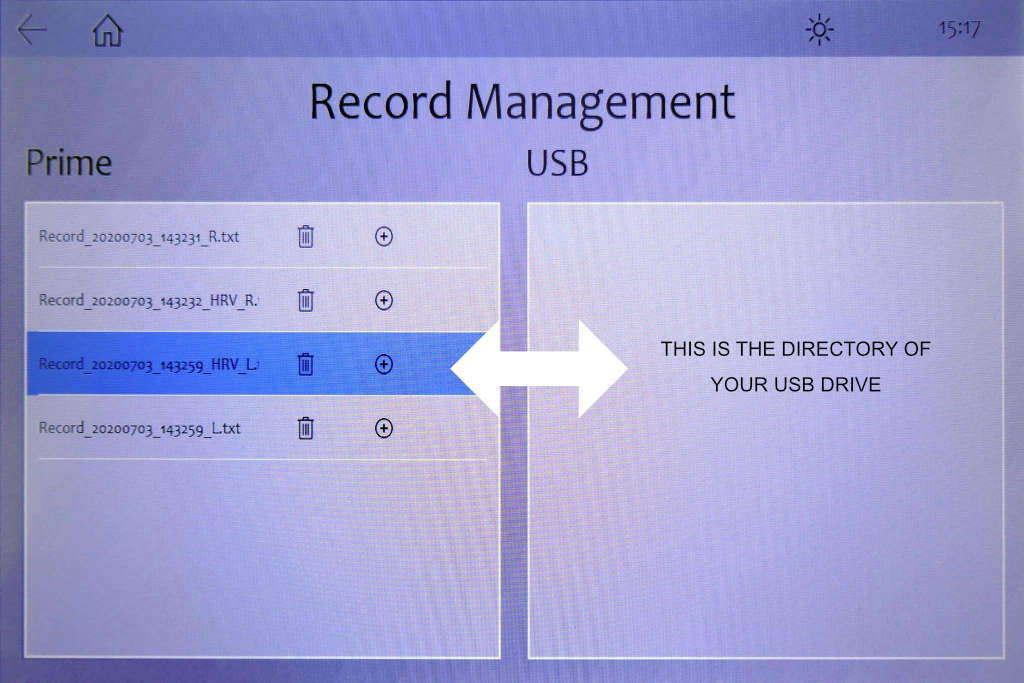
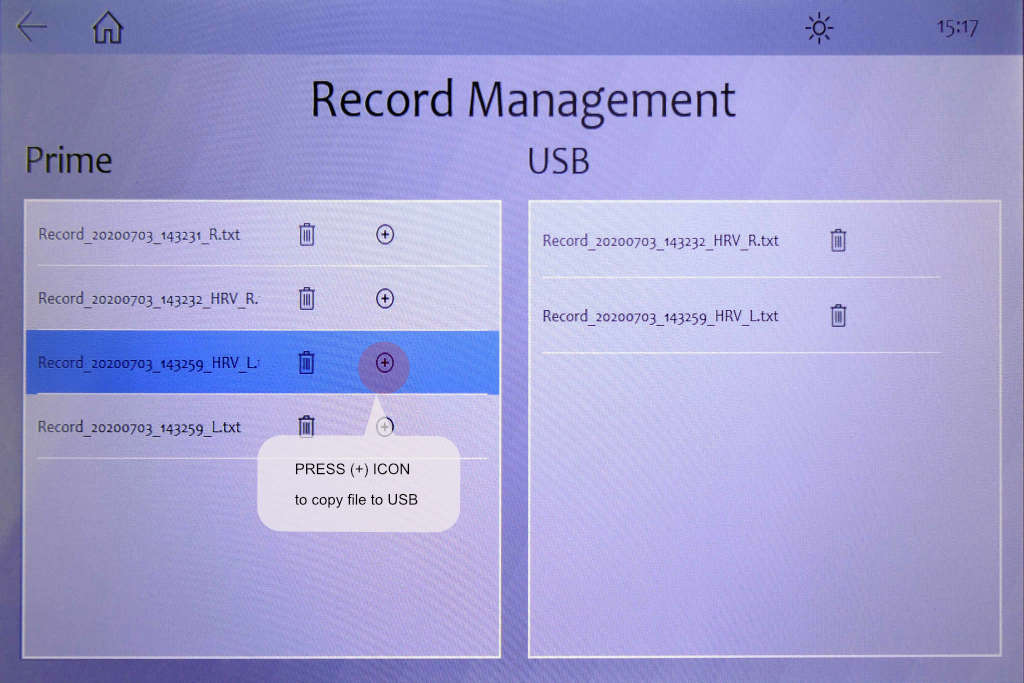
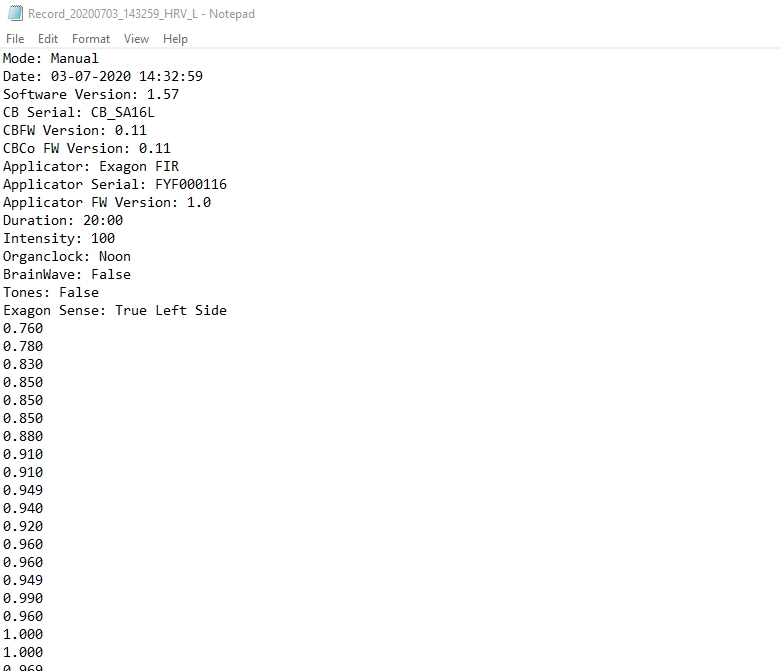
Step 5: You can now unplug the USB drive and bring over the file to your PC to import into Kubios. A correct HRV file should look something like below. This is a text file which you can open with notepad.
Importing HRV file into Kubios
Kubios software support is beyond our support scope. One common problem with the first time the user is importing the incorrect HRV data file. The following shows you how to choose the correct data file (if you missed the information earlier in choosing the correct file to export).
- Plug in the USB drive with the export files into your PC, and start Kubios software
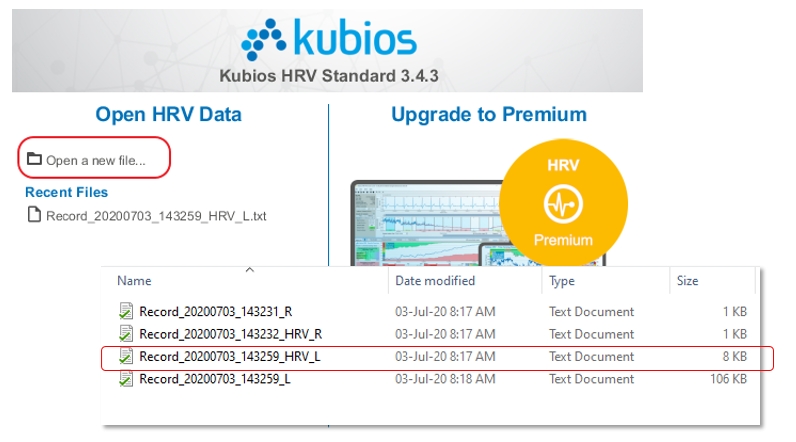
- Look for Record with _HRV_ (R/L)extension. HRV_R / HRV_L refers to the Right/Left side of the connector where the SENSE was plugged into.
- If you have only 1 SENSE, look for the file with a bigger size, if you are not sure which side the SENSE was plugged into. If you have two SENSE plugged into both sides of the connector box, you will need to know the specific R/L the SENSE is plugged into to ensure you are importing the correct data file.
- Once the HRV file is loaded, the Kubios software will automatically process the file without additional action needed (see below)
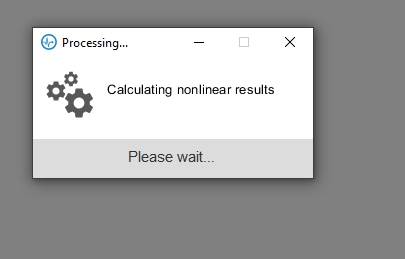
After several seconds (depending on your computer processing speed), you will be presented with a screen similar to this.
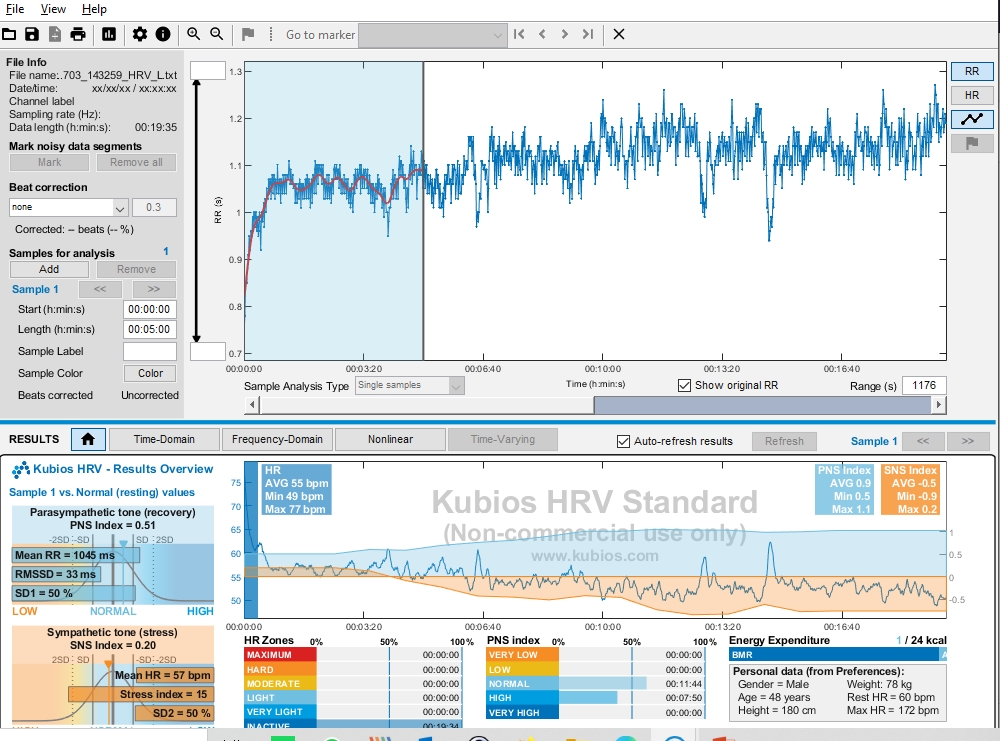
You can also take a look at the webinar below to learn more about interpreting the result. Interpreting the result is beyond our support scope.
Visit the https://imrsasia.com/webinars/ for more